 WorkRoll
Can iPhone Photos Auto-Delete? Set an Expiry for Temporary Shots
To auto delete photos on iPhone by age, keep temporary work shots in a WorkRoll album with retention days enabled. WorkRoll clears expired in-app items when it launches or returns to the foreground. Apple's Recently Deleted instead removes photos 30 days after deletion; it is not a per-album timer for photos you still keep.
What automatic deletion does iPhone Photos provide?
Apple documents a clear automatic step: photos and videos that you delete remain in Recently Deleted for 30 days, then are permanently removed. The clock starts after deletion, not after you take the picture. Apple's photo deletion guide describes deleting, recovering, and permanently removing items.
That is different from saying, “Keep everything in my parking album for a chosen number of days.” Apple's documented Recently Deleted behavior is a recovery period for items already removed from the library. Do not put work records there as a temporary filing system and expect to remember their deadline.
If you use iCloud Photos, Apple says deleting a photo on one device also deletes it on other devices signed in to the same account. Before a large cleanup, verify which photos must remain available. A second device showing the same synced library is not an independent safeguard against deletion.
This guide does not prescribe a Shortcuts deletion automation or promise that it runs without confirmation. A shortcut that finds the wrong photos can affect more than your temporary album. Use a separately reviewed workflow if you choose automation; do not apply an unverified deletion recipe to your main photo library.
Which work shots are genuinely temporary?
“Useful for a short time” is not the same as “safe to delete now.” A parking reference may be disposable after you leave. Delivery proof can remain important during a dispute. Decide by the work process that depends on the photo, not by whether it looks mundane.
| Photo type | When expiry may fit | When to leave it off |
|---|---|---|
| Parking spot | After the visit ends and the location is no longer needed | If the photo also documents damage, a charge, or a dispute |
| Delivery reference | After the required record has been accepted and archived elsewhere | While delivery proof, claims, or customer questions remain unresolved |
| Reference shot | After a temporary comparison or setup task is complete | If it is the only record of an installation or a decision |
| Meter reading | For a redundant working copy after the official record is checked | For readings needed for billing, maintenance, or an unresolved discrepancy |
No single number of days is correct for all four uses. Follow the record requirements for your job. If you do not know how long you must keep something, leave automatic deletion off until you know.
Use separate work albums on iPhone to make that decision visible. An album called Temporary references should not also contain the only copies of invoices, client approvals, or completed-work evidence.
When does WorkRoll actually clear expired items?
WorkRoll offers retention days per in-app album. Its interface calls the setting Auto-Delete After. The timer uses each item's import time, rather than its original capture date. An old photo imported today is therefore not treated as though it spent all those previous days in the album.
Expired items are cleared when WorkRoll launches or returns to the foreground. This is not a guaranteed midnight job or a timer that deletes files at an exact wall-clock moment while the app is closed. If you have not opened WorkRoll, the next launch or return can be the point when cleanup happens.
That timing matters for recovery plans. Do not wait until after the deadline to reopen the app and export something important. Cleanup can run as you return. Choose a retention period long enough to complete the task, check the records, and make any required export before expiry.
The rule is for WorkRoll's in-app media, not an instruction to clean your entire System Albums library. Source copies you kept in Photos and files you exported elsewhere are separate copies. Do not assume the retention setting removes those copies too.
How should you set up a temporary album?
- Choose a narrow purpose. Create a separate App Album for material you can discard, such as parking references for work visits.
- Inspect existing items. Before enabling expiry in an older album, export anything you may need. Do not shorten a rule on an unreviewed collection.
- Open the album's settings. In Edit Album, choose the intended number of days under Auto-Delete After, then Save. Use Off when the album needs indefinite retention.
- Choose the capture destination. Before taking a photo or video, select the temporary App Album rather than a system destination.
- Schedule your review earlier. Check and export useful records while they are still within the retention period.
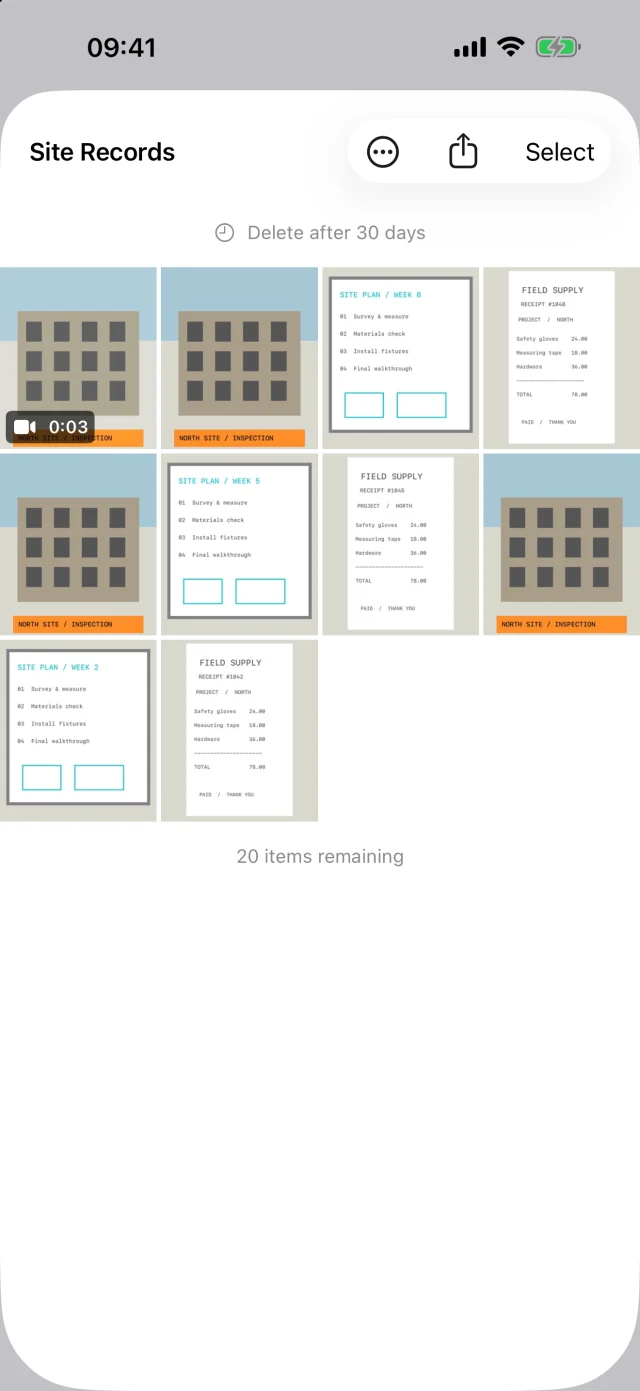
For a first trial, use disposable reference images, not the only copies of real work evidence. Confirm that the album name makes its temporary purpose obvious. If you routinely hesitate before allowing an item to expire, the album probably contains more than one retention need.
Captions can explain the task or reference number, but they are not a substitute for separating records by purpose. Do not include confidential information in a temporary note unless that information belongs in the chosen storage and export workflow.
What should you export before the deadline?
Preserve anything another task still depends on: a disputed delivery, a meter value not yet checked, or a reference image that became evidence of completed work. Use Export to Files to create a folder in a configured destination. Items with captions include same-name .txt sidecars.
Follow the Google Drive and NAS backup checklist: open the exported image, play a video, check the caption text, and confirm that the destination has received the files. A folder name alone is not proof of a complete backup. Keep the original until verification is finished and its retention period still allows it.
Do not confuse expiry with privacy. A photo sent to a customer can remain on their device after your local copy expires. Likewise, an exported folder follows its destination's permissions. Read the album lock comparison if preventing casual browsing is another requirement.
What daily habit keeps expiry safe?
- At capture: check the destination album before adding the photo or video.
- Before the task ends: decide whether a temporary reference has become a record you must preserve.
- Before the retention deadline: export required items and inspect the copy.
- Before changing retention: review all existing content, not only the newest thumbnails.
- After a process changes: stop using expiry for albums whose required retention is now uncertain.
WorkRoll includes retention settings in the free version. You can create unlimited albums, with up to 30 photo or video items in each free album. Pro is a one-time purchase without a subscription; it is not required to use expiry.
Frequently asked questions
Will photos disappear at exactly midnight?
No exact midnight schedule is promised. WorkRoll clears expired in-app items when the app launches or returns to the foreground. Plan exports before the retention deadline, not after your next launch.
Can I recover expired WorkRoll photos from Recently Deleted?
Do not rely on that. Apple's 30-day recovery period applies to deletions in Photos. WorkRoll's in-app cleanup is separate. Keep an export of anything that may matter later.
Should I put delivery proof on a short timer?
Only after you know the required record period and have preserved required evidence elsewhere. If a claim or question is unresolved, use an album without expiry. This guide does not set legal or employer retention periods.
Give temporary shots their own place
Use WorkRoll for disposable work references, and keep automatic deletion off for records you must preserve.