 WorkRoll
How to Separate Work Photos From Personal Photos on iPhone
Separate work photos from personal photos on iPhone by choosing the right storage boundary. Photos albums organize pictures but keep them in your library. Hidden limits visibility. An app such as WorkRoll stores work media separately. Choose your capture destination first, then plan how to export and back up important records.
What does separating work photos actually mean?
To separate work photos from personal photos on iPhone, first decide whether you need easier browsing or separate storage. A work album helps you find a picture. It does not remove that picture from the main Photos library. A separate app can store its own media outside that library, but you must manage its backup.
This distinction matters when you hand your phone to a client or share your screen during a call. A useful work picture may sit beside family photos, a medical document, or another client's information. Opening the right album before presenting reduces casual browsing mistakes. It does not turn a mixed library into separate storage.
Finding records later is another problem. A close-up of a valve may not identify the building or explain whether repair is complete. Separation works best when storage, album names, written context, and export rules all agree. Start with one active project rather than reorganizing every picture you have ever taken.
Will work photos appear on a family device?
Apple's iCloud Photos documentation explains that photos and changes sync across devices using the same Apple Account. If a family-used iPad is signed in to your account with iCloud Photos enabled, work pictures in that library can appear there. A work album does not opt those pictures out of synchronization.
Do not confuse this with automatically sharing every picture with relatives. The relevant questions are which account a device uses and which sharing features you enabled. Check these before moving confidential material. Family relationships alone are not the rule described by Apple's same-account synchronization documentation.
iCloud Shared Photo Library adds a different sharing route. Contributions move from the Personal Library into the Shared Library. Participants can add, edit, and delete content. Camera sharing can be manual or automatic, including automatic sharing near participants or at home. Review those settings before a work visit.
Which built-in iPhone options are useful?
Albums: good organization, not separate storage
Create a project album if you mainly want faster retrieval and are comfortable keeping everything in Photos. Apple's album guide confirms that deleting an album leaves its photos and videos in the library. Albums organize existing library items; they are not independent copies or private vaults.
Use a stable project code, then add relevant photos after capture. This is the simplest option for occasional work pictures. The trade-off is continued mixing in the library and continued iCloud Photos behavior. Do not delete library originals expecting an ordinary album to preserve a separate copy.
Hidden album: reduce visibility, not create project spaces
The Hidden album keeps hidden items out of the regular library, other albums, and the Photos widget. Apple documents authentication for the locked Hidden album on supported systems. If you use iCloud Photos, hiding also applies on your other devices.
This suits a small set of pictures that should not appear during casual browsing. It is less useful for maintaining several named work collections with different retention rules. Hiding does not mean removing media from iCloud Photos. For the access-control differences, read how built-in photo locking compares with album passwords.
Shared Library: designed for shared access
A Shared Library can display separately from your Personal Library, but it is a collaborative collection. It is not a private work partition for different clients. Because participants can edit and delete contributions, use it only when that access matches your purpose. Turning off automatic camera sharing avoids one route for accidental contributions; it does not relocate existing shared items.
A second Apple Account: a poor daily sorting habit
Apple's iCloud Photos setup depends on the account signed in on each device. Building a workflow around changing accounts is not the same as choosing an album before a shot. You would be managing account and synchronization state to solve a filing problem. For everyday work on one phone, use albums or deliberately separate storage instead.
Files folders: useful for delivery and archives
Folders are a good choice when the final destination is a project directory rather than a photo feed. They can hold images alongside other work documents. Apple supports third-party storage providers in Files, including Google Drive, Dropbox, and OneDrive, after you install and configure them.
A folder workflow still needs a deliberate transfer and a check of the destination. Keeping a second copy in Files does not itself remove a source photo from Photos. A local folder on the same phone also does not protect against losing that phone. Treat folders as a destination, not an automatic sorting policy.
Which method fits your job?
| Need | Start with | Trade-off |
|---|---|---|
| Find occasional work shots quickly | A named Photos album | Items remain in the personal library |
| Hide a small set from casual browsing | Hidden album | Still part of Photos and its sync behavior |
| Let selected people edit one collection | Shared Library, if its permissions fit | Not private client-by-client storage |
| Keep new work shots outside Photos | WorkRoll App Albums | You must arrange backup and export |
| Deliver an archive to an approved drive | Files folders | You manage copies and destination access |
| Need a shared company workspace or desktop workflow | A company-approved service | WorkRoll is not a team or desktop app |
For regulated or contract-restricted material, use your employer's approved storage policy. A password feature alone does not establish compliance. Decide who may view records, where copies may live, and who must retain them before choosing any personal phone workflow.
How does WorkRoll keep work photos separate?
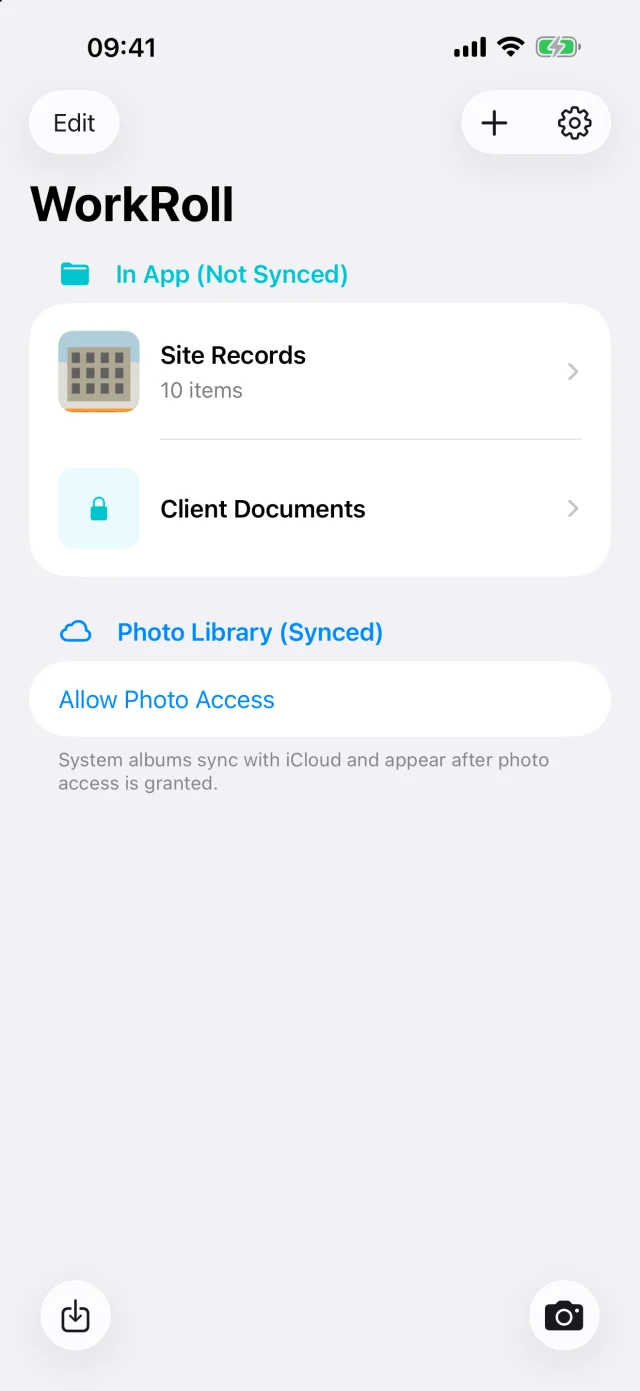
WorkRoll is an iPhone app for local work albums. Its home screen separates App Albums from System Albums. The distinction is storage, not just a different view of the same library. It requires no account and never uploads photos or videos to WorkRoll servers.
- Create a destination. Make an in-app album for the project or visit. Name it before you start taking pictures.
- Choose storage before capture. WorkRoll can capture photos or video to the system library, a system album, or an in-app album. Choose an in-app album to keep new work media outside Photos.
- Bring in existing records. Import photos and videos, or choose WorkRoll in the Photos share sheet and pick an album (enter its password if it is locked). Sharing queues the files; they are added the next time you open WorkRoll. Open WorkRoll and check the destination album before deleting originals.
- Add context. Use Item Info to add a caption. Search Captions matches notes in the currently unlocked group, not every album or hidden group.
- Prepare handoff. Share selected items or a whole album, save media back to Photos, or choose Export to Files.
Importing is not proof that every other copy has disappeared. Inspect imported pictures and play important videos before deciding whether to remove originals. Deleting originals after import requires iOS confirmation; they first go to Recently Deleted. With iCloud Photos enabled, deleting system-library originals also affects the synchronized library on other devices.
WorkRoll supports album passwords, Face ID app lock, and a background privacy mask. Different passwords correspond to separate media groups. Passwords control access inside the app; they are not forensic-grade encryption. Forgotten album passwords cannot be recovered. Keep access protection separate from your backup plan.
What should work albums be called?
Use a project or job code that survives changes in staff and appointment dates. Add a stage only when it changes how you retrieve or deliver images. These are naming templates, not nested folders or automatic categories in WorkRoll. Create only the albums your work needs.
| Role | Album name template | Record in captions |
|---|---|---|
| Contractor | JOB-042 · Kitchen · Before / After | Room, surface, issue, inspection status |
| Interior designer | DES-018 · Materials · Client review | Sample code, proposed location, decision pending |
| Real estate agent | PROP-063 · Visit 2026-10-27 | Room, condition, permission to publish |
| Field service | SVC-112 · Pump inspection | Asset ID, observed condition, action taken |
| Sales visits | VIS-028 · Display review | Store code, shelf position, follow-up owner |
For contractors, separate evidence taken before work from a completed repair without claiming a photo proves an inspection passed. The construction site photo workflow covers a practical capture checklist. Keep originals and contractual records according to the requirements of your job, not a convenient cleanup schedule.
For design and property visits, record the location and intended use of each image. A picture approved for internal discussion is not automatically approved for a listing. For sales and service work, an asset or store code is usually more useful than a person's full name. Avoid collecting unnecessary personal details.
Keep expenses apart from visual progress records. An album such as EXP-2026-10 · Travel is easier to review than receipts scattered across project albums. Follow the receipt photo organization guide for a handoff checklist; WorkRoll does not create expense reports or extract receipt totals.
How do you make separated photos easy to find?
Album names identify the collection. Captions explain the item. Use a short pattern: what you see, where it is, who owns the next action, and current status. Write “SVC-112, inlet joint, technician follow-up, leak still visible” rather than “check this.” The guide to adding searchable photo notes includes reusable templates.
WorkRoll captions allow up to 2,000 characters per item. Album search matches the captions of the currently unlocked group. It is not OCR and does not infer equipment numbers from pictures. Choose a few consistent terms, and write the code you will later search. You can sort by capture date or date added and choose a custom album cover.
Before sending, review the actual selection rather than relying on the album name. Ordinary sharing and saving back to Photos do not embed or send WorkRoll captions. If the recipient needs the text, Export to Files creates a same-name .txt file for each captioned item. Keep those files beside their matching media.
Who is responsible for backup and deletion?
You can enable the free Include in iPhone iCloud Backup setting and also enable device backup in system settings. That includes media in iPhone iCloud Backup; it does not create a synchronized photo library. Alternatively, export important albums to a separately stored destination. Do not assume a backup exists because you have an iCloud account.
Export to Files exports a folder through the Files picker. You can choose configured providers such as Google Drive, Dropbox, OneDrive, or a NAS available there. Check the exported media and captions at the destination before deleting anything. The work photo backup guide explains how to choose and verify a separate copy.
Retention is optional cleanup, not backup. WorkRoll can apply retention days per album and clears expired items when the app launches or returns to the foreground. Do not use expiry for records you still owe a client. Read how temporary photo expiry works before enabling it.
Frequently asked questions
Can I separate work photos without paying?
Yes. Built-in albums can organize a mixed library. WorkRoll's free version offers unlimited albums, up to 30 photo or video items per album, and one password per album. Captions, export, retention, covers, sorting, and app lock are included.
Does Pro add cloud sync or a shared team account?
No. Pro is a one-time non-consumable purchase, not a subscription. It adds unlimited items per album, multiple album passwords, alternate app icons, and Family Sharing. WorkRoll does not provide cloud sync, a team workspace, or web and desktop apps.
Will all photos taken with WorkRoll stay outside Photos?
Only when you choose an in-app album as the destination. WorkRoll also supports capture to system Photos and system albums. Saving in-app media back to Photos deliberately creates a system-library copy, which follows your iCloud settings.
What should I do before my next site visit?
Create one clearly named album, choose it before capture, and agree on a short caption pattern. Decide where the final export will live. Verify that destination before relying on the phone as your only working copy.
Give work photos their own place
Start with one WorkRoll album for your next job. Choose a backup destination before removing any originals.