 WorkRoll
How to Organize Receipt Photos on iPhone for Expense Reports
To organize receipt photos on iPhone, create monthly or project albums, capture the full receipt, and record its purpose and amount. Export pictures with notes for your accountant. WorkRoll keeps receipts separate from personal photos but does not extract totals. Keep originals until your employer and applicable rules allow disposal.
Why do receipts get lost in the camera roll?
A receipt between holiday pictures and screenshots is easy to overlook. You may remember the shop but not when you photographed the slip. Even when you find it, the picture may not explain which project paid for the purchase. A useful routine preserves both the receipt and its business context.
Start with built-in tools if they fit. Apple documents a Receipts collection in Photos for finding receipt images already in your library. You can also scan documents with Notes or Files. Consult the instructions for your system version rather than assuming every iPhone has the same layout.
| Need | Suitable approach | What remains your responsibility |
|---|---|---|
| Find receipt images already in Photos | Built-in Receipts collection | Check completeness and purpose |
| Capture paper as a scanned document | Notes or Files scanning | Confirm the accepted delivery format |
| Keep work receipts out of personal Photos | WorkRoll App Albums | Enter captions and amounts manually |
| Extract totals or manage expense approvals | Your employer's expense software | Check its requirements; WorkRoll does neither |
WorkRoll is a photo organizer, not an accounting system. If receipts are part of a larger work-photo problem, use the guide to separating work and personal photos on iPhone to establish a consistent destination.
Should receipts be organized by month or project?
Match the album to the way you submit expenses. For monthly claims, use Expenses_2026-10. For project billing, try P024_2026-10_Receipts. These are plain album names, not automatic expense categories or nested folders inside WorkRoll.
- One role: keep one album per reporting month and describe purchases in captions.
- Several clients: add the agreed project code so exports do not mix unrelated expenses.
- A business trip: use a trip album when all expenses are submitted together.
- Personal warranties: keep those receipts separate from employer reimbursements.
Choose whether the month means the purchase period or submission period, following your employer's process. Do not switch meanings halfway through the year. When photographing an older receipt, enter its actual transaction date in the caption. WorkRoll can sort by capture date or date added, but it does not read the purchase date from the paper.
Before shooting, choose the intended in-app album as the destination. For existing photos, import them or choose WorkRoll in the Photos share sheet and pick an album. Enter its password if it is locked. Sharing queues the files; they are added the next time you open WorkRoll. Before deleting originals, open WorkRoll and confirm the photos have imported and can be viewed in the album. Importing copies the image; it does not mean the original has disappeared from your personal library.
How do you photograph a receipt clearly?
Check readability while the receipt is still in front of you. Capturing only the total may omit details your accountant needs. Keep the complete document, even when you plan to add a closer picture of a difficult section.
- Flatten it. Use a flat surface and keep fingers away from printed information.
- Include every edge. Do not cut off the merchant, date, line items, or bottom of the receipt.
- Avoid glare. Change the light or position until text remains visible across the paper.
- Keep the phone parallel. Avoid an angle that makes one end too small to read.
- Enlarge the result. Check the date, merchant, total, and currency before putting the receipt away.
- Handle long receipts deliberately. Take an overview, then extra detail images if needed.
Label multiple pictures of one receipt consistently: “R012 / full receipt,” “R012 / upper detail,” and “R012 / lower detail.” Those are three images, not three expenses. WorkRoll does not stitch them together or detect duplicate claims. Count transactions separately when preparing your expense report.
What should you record besides the receipt image?
Open Item Info and choose Add a Caption. Use a repeatable order: transaction date, project, purpose, amount with currency, and status. For example: “2026-10-08 / P024 / site measuring tape / USD 18.00 / not submitted.” This is a fictional formatting example, not a real expense or a claim about eligibility.
“Supplies” may be too vague for someone reviewing the purchase later. Explain what the supplies were for. Include the same receipt reference on related images, and keep the currency explicit. Follow your employer's instructions for exchange rates rather than treating a handwritten converted amount as authoritative.
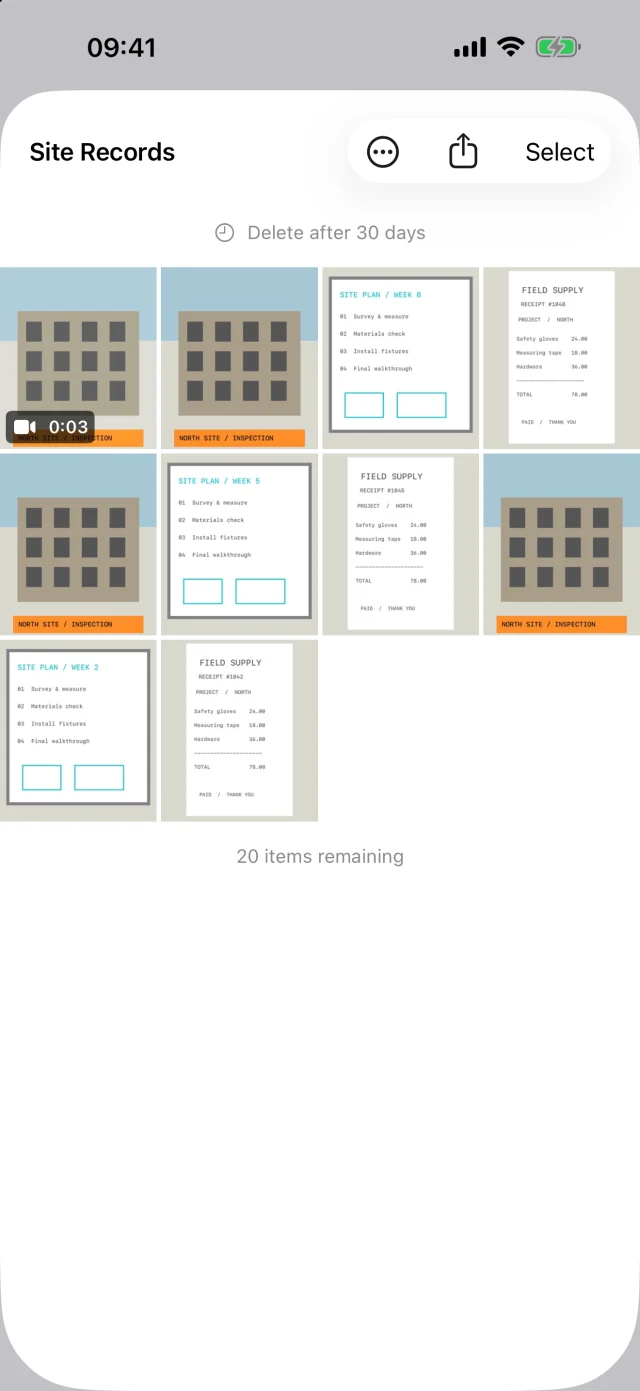
Search Captions matches text you entered within the album's currently unlocked group. It does not extract words or numbers from receipt images. Captions support up to 2,000 characters, but WorkRoll has no OCR, amount extraction, addition of totals, or tax calculation. Check every manually entered amount against the original.
“Not submitted,” “submitted,” and “reimbursed” are your own words, not built-in approval states. Update them only after checking the actual response from your employer. The guide to adding searchable photo notes explains how to keep wording consistent without writing a long narrative.
How do you export a month of receipts for an accountant?
Ask which format the recipient accepts before preparing the batch. WorkRoll exports media and caption text files, not a PDF expense report, spreadsheet, or accounting entry. If your employer requires its expense portal, you still need to complete that submission separately.
- Review the month or project album. Distinguish receipt count from image count.
- Check each purpose, amount, and currency. Replace unreadable pictures while originals remain available.
- Choose Export to Files and select the agreed folder location.
- Include the same-name .txt sidecars created for captioned items.
- Open sample pictures and text files at the destination to check they match.
- Record the submission date and confirm receipt before updating your own status notes.
The system Files picker can use configured Google Drive, Dropbox, OneDrive, or NAS locations. Follow Apple's instructions to add third-party cloud services to Files. Exporting a folder is manual delivery, not automatic synchronization of future additions. See the work photo backup and export guide for a fuller workflow.
Ordinary photo sharing, including Share Album, does not send WorkRoll captions. If the accountant needs your explanations, deliver the exported folder with its text files. Check for personal purchases and unnecessary private information before sending anything.
Can you delete receipts after reimbursement?
Receiving reimbursement and being allowed to destroy a record are separate decisions. Check outstanding returns, warranties, internal reviews, and retention requirements first. Keep paper receipts in envelopes using the same month or project labels as your albums. Preserve original electronic documents too, rather than assuming a screenshot contains everything required.
WorkRoll retention days suit temporary copies that you have explicitly cleared for disposal. Expired items are removed when the app launches or returns to the foreground. It does not know whether a claim was approved. Do not give an album a short expiry if it also contains records you must retain.
In-app media does not sync to iCloud Photos and is excluded from device backups by default. The free Include in iPhone iCloud Backup setting includes it in device backup, not an accountant's shared folder. Deleting the app deletes its in-app media; reinstalling or restoring purchases does not restore it. Export important records and verify another readable copy.
Frequently asked questions
Can I use the free version for monthly receipts?
Yes. Free includes unlimited albums, with 30 photo or video items per album, captions, and export. Pro removes the per-album item limit through a one-time purchase with no subscription.
Will WorkRoll read totals or flag duplicate receipts?
No. It stores images and your captions. Use your company's approved expense tool for OCR, amount extraction, duplicate checks, and approval workflows.
Can my accountant sign in to my album?
No. WorkRoll has no team account or shared cloud albums. Deliver exported files and arrange access through the destination service instead.
Start with this month's first receipt
Create a monthly album, photograph the full receipt, and record its purpose while you still remember it.