 WorkRoll
How to Add Notes to Photos on iPhone and Find Them Later
To add notes to photos on iPhone, open a picture in Photos, swipe up or tap Info, and use the caption field. Photos can search captions. For separate work albums, WorkRoll offers item captions and search within the unlocked group. Export to Files includes those captions as matching text files.
How do you add a caption in the Photos app?
You can add notes to photos on iPhone without installing another app. Apple's photo information guide identifies a caption field in the information view. It describes a photo or video and helps you find it in Search. This is descriptive text associated with the item, not lettering drawn over the image.
- Open Photos and open the photo or video you want to describe.
- Swipe up on the item or tap the Info button to reveal its information.
- Enter your note in the caption field. Start with a project code and a clear description.
- Finish editing, then open Search and enter a distinctive word from that caption.
Apple's Photos search guide explicitly lists captions among searchable information. You do not need to rely on recognizing objects in the picture. Write “JOB-042 inlet joint” if that is how you will look for the record later. Interface placement can vary with your installed system version.
This is the simplest choice when you already keep work images in Photos and want extra context. It does not move a photo out of your personal library. If storage separation matters too, read how to separate work photos from personal photos on iPhone before reorganizing your records.
Should you use captions, Notes, or WorkRoll?
| Method | Best fit | Main limitation |
|---|---|---|
| Photos caption | A searchable description beside a library item | Does not separate work media from Photos |
| Notes app | A meeting narrative with images and other attachments | You manage the relationship between text and each picture |
| WorkRoll caption | Item-level context inside a separate work album | Search covers the currently unlocked group; ordinary sharing omits captions |
Choose the place you expect to revisit. If the unit of work is a meeting, a note containing images may be easier to read. If it is an individual defect, receipt, or equipment photo, keeping text beside each item makes retrieval and handoff more predictable.
When is the Notes app a useful workaround?
Apple supports adding photos, videos, and other attachments in Notes. Open or create a note, use the Attachments button, and choose an available option. You can also share an item from another app to Notes and select an existing note or create one.
For a visit summary, use a heading such as JOB-042 · Kitchen review, then put each explanation immediately beside the relevant attachment. This works well when several pictures support one written account. Avoid a block of unrelated images followed by “see above,” which becomes ambiguous when someone copies or rearranges the material.
Adding a picture to a note is not the same operation as filling its caption in Photos. Do not assume text written in Notes becomes searchable as a Photos caption. Apple also documents a Save to Photos setting for images captured in Notes. Check that setting if avoiding new copies in your personal library is important.
How do WorkRoll photo notes work?
WorkRoll keeps work photos and videos in in-app albums, separate from your personal Photos library when you choose that destination. Its interface calls item notes captions. You can add them to both photos and videos, with a maximum of 2,000 characters per item.
- Open App Albums, choose the relevant album, and unlock the intended group if it has a password.
- Open an item, then open Item Info.
- Use Add a Caption at the top to enter your text. Finishing or closing saves the edit.
- Return to the album and use Search Captions to find a word or code you entered.
When the viewer toolbar is visible, up to two lines appear below the photo; tap the caption to edit it. Album search matches captions only within the currently unlocked group. It ignores case and accents, but it is not a search across all albums or other password groups.
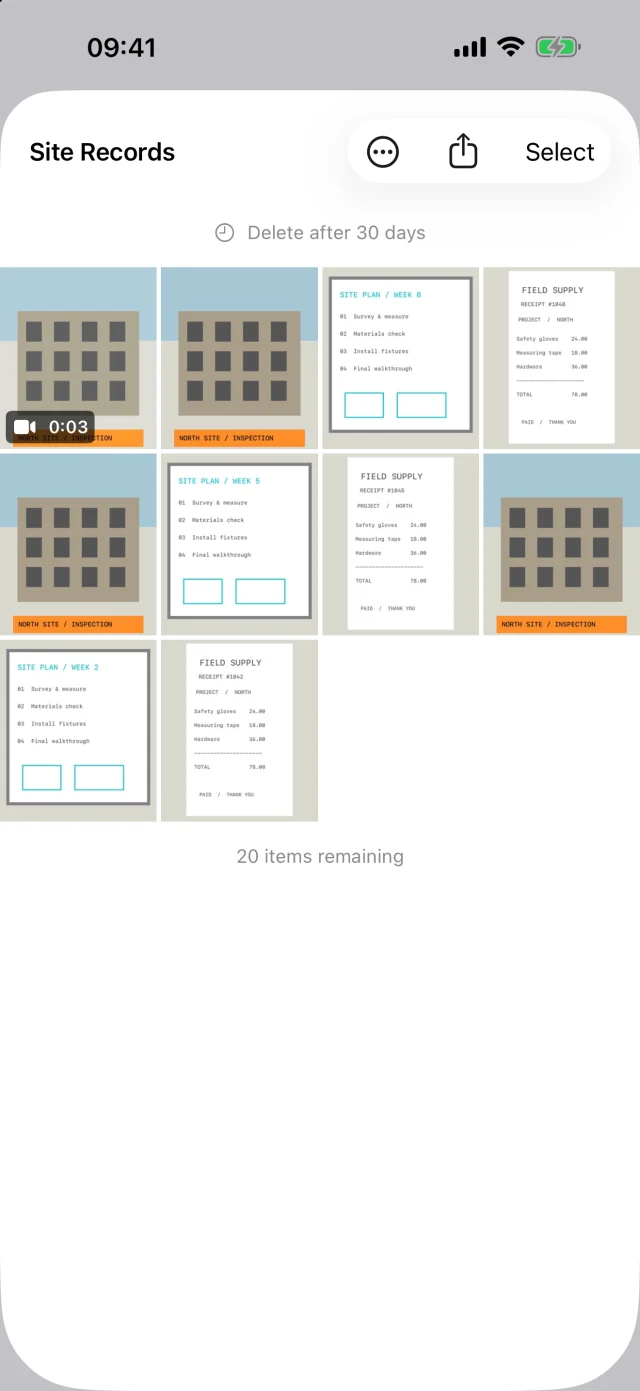
Write important identifiers yourself. WorkRoll does not perform OCR, extract receipt amounts, or infer a maintenance result from the image. After importing media, review its caption inside WorkRoll and enter the context you need. Do not assume notes written elsewhere arrived with the picture.
What should a useful work photo note say?
Use four prompts: what, where, who, status. “Who” means the role responsible for the next action, not a requirement to collect names. Start with the job or asset code. Add enough context to distinguish this picture from another one taken on the same visit.
| Purpose | Caption template |
|---|---|
| Construction issue | JOB-042 · Sealant gap · Kitchen east window · Contractor to review · Open |
| Field service | SVC-112 · Inlet joint · Pump room · Service technician · Recheck required |
| Receipt | EXP-October · Parking for client visit · Project 042 · Submitter · Not submitted |
| Design choice | DES-018 · Sample B12 · Hallway wall · Client decision · Awaiting approval |
| Sales follow-up | VIS-028 · Display position · Store 06 front shelf · Account owner · Follow-up needed |
Separate observation from conclusion. “Water visible below joint” describes the image. “Pipe repaired” asserts an outcome the image may not establish. If a status changes later, include the date and explain the change rather than leaving an unexplained “done.” A caption is context, not a certified inspection or an approval system.
Use a small vocabulary such as Open, Awaiting approval, and Complete. Search for the same project code every time. For expense work, add the business purpose you will need at submission; the receipt photo guide explains how to prepare images without implying WorkRoll produces an expense report.
Will the note travel with a shared photo?
For WorkRoll, the answer depends on the operation. Ordinary photo sharing and saving back to system Photos do not embed or send the caption. Someone receiving only the image will not receive your WorkRoll note. This matters when a picture is meaningless without a location or a next action.
Export to Files creates a folder of media. Each captioned item gets a same-name UTF-8 .txt sidecar. Uncaptioned items do not get an empty text file. Keep the media and text files together, and include both when handing over a record. This is not a PDF report or text burned into the picture.
Use the work photo export and backup guide to choose a configured Files destination. Open one exported picture and its matching text file before deleting originals. Once exported, those files sit outside WorkRoll's album access controls; check who can access the destination.
Frequently asked questions
Are captions part of the free version?
Yes. WorkRoll captions, caption search, and Export to Files are free. The free version allows unlimited albums and up to 30 photo or video items per album, with one password per album.
Why does Search Captions not find an item?
Check that you opened the right album and unlocked the right group. Search matches that group's written captions, not all media, picture contents, or other groups. Try a distinctive word that you can see in the item's saved caption.
Is an album password encryption for my notes?
No. WorkRoll passwords restrict in-app access; they are not forensic-grade encryption. Forgotten passwords cannot be recovered. Avoid unnecessary sensitive text, and apply suitable access controls to exported files.
Can I use a caption as visible text on the image?
Not with WorkRoll captions. They are separate item notes, not watermarks or image overlays. If a recipient needs the wording, export the matching text file or include the explanation explicitly in your delivery message.
Keep the picture and its context together
Try a WorkRoll album for one project. Write a short caption, search for it, then export a sample with its text file.