 WorkRoll
Back Up Work Photos to Google Drive or a NAS Without iCloud Photos
To back up work photos to Google Drive, export a WorkRoll album with Export to Files and choose a configured storage location. The same workflow can use Dropbox, OneDrive, or a reachable NAS. Check the exported photos, videos, and caption text files before deleting anything. This is manual export, not automatic cloud sync.
How are iCloud Photos and iCloud Backup different?
Apple distinguishes iCloud syncing from device backup. iCloud Photos keeps the system photo library up to date across devices. iCloud Backup periodically copies eligible device data that is not already synced to iCloud. They serve different purposes; neither term means every file in every app has an independent archive.
When iCloud Photos is enabled, those photos are not duplicated in the daily device backup. Apple also explains that deleting a synced photo deletes it on other signed-in devices. A synchronized library is useful, but it is not a separate historical copy immune to your deletions.
| Method | What it does | WorkRoll boundary |
|---|---|---|
| iCloud Photos | Synchronizes the system photo library | In-app media is not included; saving a copy to Photos changes that copy's location |
| iPhone iCloud Backup | Backs up eligible device data for device recovery | Requires the optional WorkRoll toggle and system backup settings |
| Export to Files | Creates an album folder in a destination you choose | Manual export; verify the destination has received the files |
Work photos may need a different destination from the library where you browse family pictures. A project folder is easier to hand over without exposing unrelated personal images. Keeping work separate also reduces the chance of selecting a client picture when preparing personal photos to share. This is an organization choice, not a claim that iCloud Photos automatically shares your personal library with relatives.
Start with a separate work photo workflow on iPhone so new pictures reach the intended place before backup day.
How do you add Google Drive, Dropbox, or OneDrive to Files?
WorkRoll uses the system Files picker rather than a separate login to each storage provider. Apple documents adding third-party cloud apps to Files:
- Install the chosen provider's iPhone app and finish its account setup.
- Open Files and tap Browse.
- Open the More menu, then choose Edit.
- Enable the provider under the available locations and finish editing.
- Open the destination folder and confirm that it is the correct account and work area.
If a provider is missing, finish setup in that provider's app and consult its support. WorkRoll cannot make an unavailable location appear. An organization may also restrict where work data can be stored. Use an approved account, rather than choosing a personal account because it happens to be signed in.
Google Drive is the file destination in this workflow, not a promise of automatic backup through Google Photos. You choose a folder and export a copy. Check the provider's upload status before treating that copy as safely stored away from the phone.
How do you connect a NAS through Files?
Prepare a NAS shared folder that your iPhone can reach, with an account allowed to write there. For an SMB share, obtain the server address and credentials from the NAS administrator. Do not expose a file server to the public internet merely to make an export work.
Follow Apple's Connect to Server instructions: open Files, tap Browse, open More, then choose Connect to Server. Enter the hostname or network address and tap Connect. Select Registered User when the share requires credentials, enter them, and choose the shared folder after connecting.
A NAS is only usable while reachable and writable. If you cannot browse the folder in Files, fix that connection before starting a large export. WorkRoll does not provide a remote NAS connection service. A copy elsewhere on the same phone is useful for transfer, but does not protect against losing that phone.
How do you export a WorkRoll album?
- Open App Albums. Choose the album you want to preserve. If it is password-protected, unlock the media group you need.
- Review the contents. Check the date range, photos, and videos. Finish important captions before exporting.
- Choose Export to Files. Use the album's export command to prepare a folder of media.
- Choose the destination. In the system Files picker, select the configured Google Drive, Dropbox, OneDrive, or NAS folder, then confirm using the picker.
- Let the transfer finish. Check the provider or server as well as the app. Keep the source until you have confirmed the remote copy.
- Open the exported files. Inspect a photo, play a video, and open a caption text file when the album has captions.
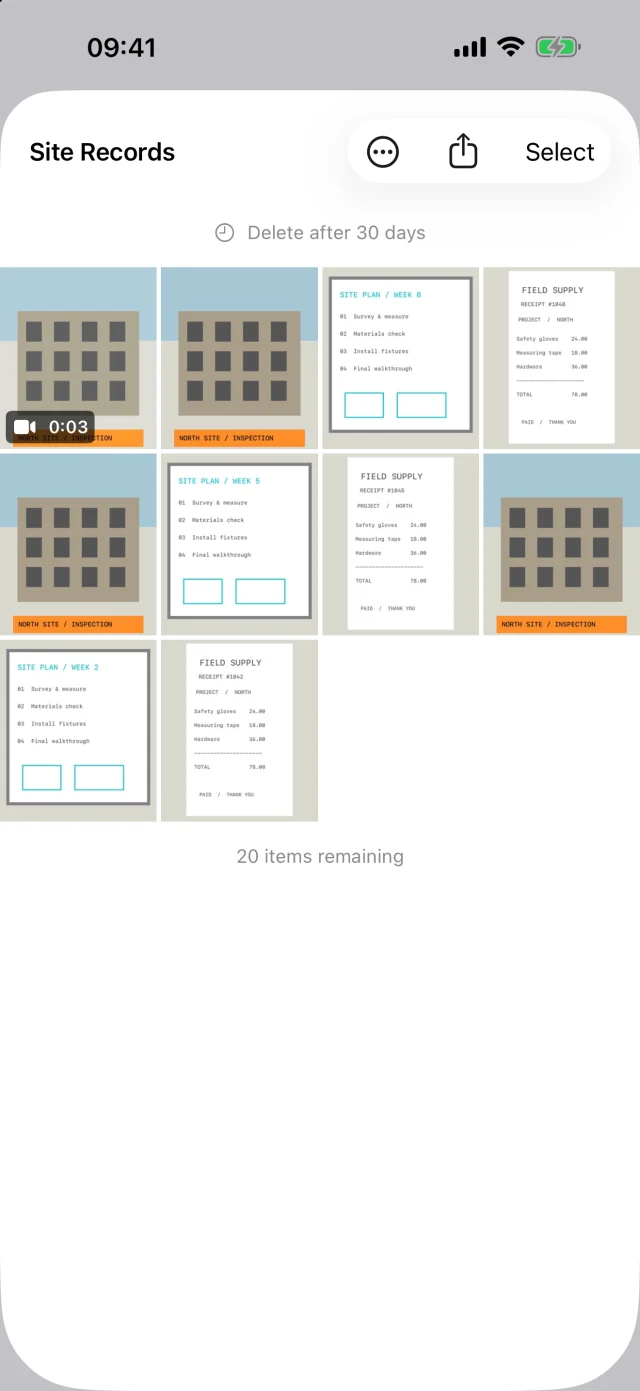
Use a destination structure such as Work / Project-A / 2026-10-27-export. Treat that as a folder naming suggestion, not an automatic WorkRoll naming rule. Dated folders make it easier to distinguish a completed handover from yesterday's incomplete attempt. Record the last checked export date somewhere outside the phone.
Different album passwords correspond to separate media groups. Do not assume one visible group proves every group is backed up. Review the groups you need separately, and check the exported results. Read album password and export privacy limits before placing sensitive work in a shared folder.
Will photo notes travel with the export?
Yes, through Export to Files. For each item with a caption, WorkRoll creates a same-name UTF-8 .txt sidecar alongside the media. Keep the media and its text file together. Items without captions do not need a sidecar, so a folder containing extra text files can have more files than the album has media items.
The caption is not burned into the picture or turned into a PDF report. Ordinary photo sharing and Save to Photos do not carry these caption sidecars. If written context matters for a handover, export the folder rather than sending only the images. Do not assume importing a folder later rebuilds an album's passwords, settings, or caption relationships.
Can you use iCloud Backup without iCloud Photos?
WorkRoll offers the free Include in iPhone iCloud Backup switch in Settings, under Storage & Backup. It is off by default. Turning it on lets in-app media participate in device backup; it does not add that media to iCloud Photos.
You must also enable iCloud device backup in the iPhone's system settings. Check that an actual device backup completes; changing a switch is not proof that data has reached a backup. Keep exports for records you need to open independently of a full device recovery.
What backup routine is practical?
- After a work session: confirm the right album, add missing context, and export important new records.
- After export: compare media counts, open sample files, and confirm provider upload completion.
- Before handover: confirm who can access the destination and include the caption sidecars.
- Before expiry: export records you must retain. Read the temporary photo retention guide before using automatic deletion.
- Before removing the app or changing phones: check an independent copy. Do not rely on Restore Purchases for media recovery.
WorkRoll requires no account and does not upload photos to WorkRoll servers. Export destinations have their own accounts, permissions, and storage limits. Export and the optional backup switch are free; each free album holds up to 30 photo or video items.
Frequently asked questions
Does WorkRoll automatically sync new photos to Google Drive?
No. Export to Files is a manual operation. Repeat it when you need a newer copy and verify the destination. WorkRoll does not offer cloud synchronization or a desktop library.
Is an exported folder a full WorkRoll backup?
It preserves exported media and caption sidecars, not a promised one-click restoration of the app's entire state. Keep password records and destination organization separate from the media folder.
Can I back up without buying Pro?
Yes. Export to Files and Include in iPhone iCloud Backup are free. Pro expands album item limits and adds other features; it is not required to export your work.
Keep the work copy under your control
Use WorkRoll for separate iPhone albums, then export important records to your chosen Files location.