 WorkRoll
How to Organize Construction Site Photos on iPhone
To organize construction site photos on iPhone, create an album per site, capture each phase, and add location notes. Photograph context before details, especially before work is concealed. Export pictures and captions together at handover. WorkRoll suits one person using one iPhone, not a shared cloud project log.
Do you need a separate app for jobsite photos?
Not always. Apple Photos can organize pictures into albums, and it supports sharing and folders. With iCloud Photos enabled, albums stay available across devices using the same Apple Account. Apple's album guide explains those options. A regular album still organizes pictures within your personal library; it does not create separate work storage.
| Your need | Practical choice | Trade-off |
|---|---|---|
| A few site visits, with pictures kept in Photos | Built-in Photos albums | Work remains in your personal library |
| Your own records, separate from personal photos | WorkRoll App Albums | You arrange exports and backups |
| Multiple contributors, assigned defects, shared project history | Dedicated construction software with those features | Check company policy, permissions, and delivery requirements |
WorkRoll requires no account and does not upload photos to WorkRoll servers. It also has no shared team workspace. Start with the guide to separating work photos from personal photos on iPhone if your current library needs a wider reset. This article covers personal organization, not inspection standards or proof of compliance.
How should you name albums for different sites?
Choose one stable project identifier before the first visit. Use a pattern such as project code_site_stage. For example, P024_Oak Street_Before and P024_Oak Street_Handover remain recognizable when a client's informal project name changes. These are ordinary album names, not nested folders inside WorkRoll.
- Short job: keep one album, such as P024_Oak Street, and describe rooms and phases in captions.
- Long project: use monthly albums, such as P031_Office_2026-10, if that matches your reporting cycle.
- Important milestone: give concealed work its own clearly named album when separate handover makes sense.
- Sensitive location: use a project code instead of a customer's full name and address.
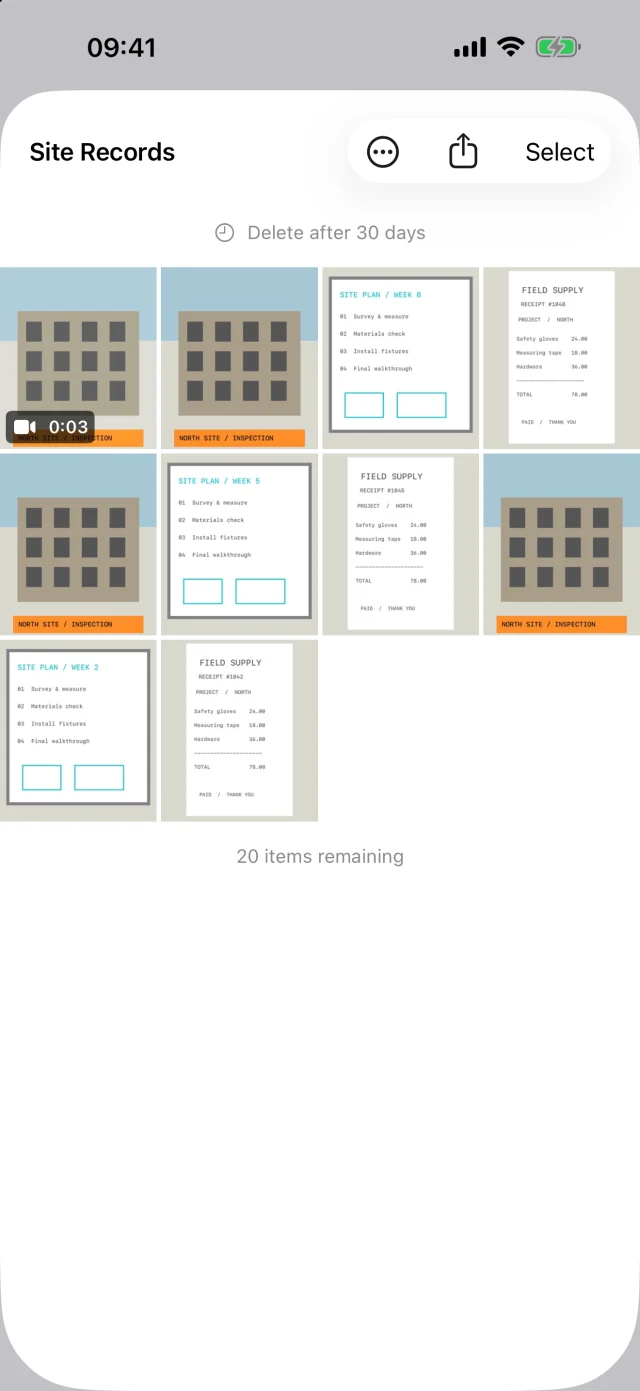
Avoid a different naming system for every visit. Before shooting in WorkRoll, select the intended in-app album as the camera destination. The camera also supports the system library and system albums, so check the destination whenever you change jobsites.
What should you photograph before, during, and after work?
Ask the project lead which records the job requires. Then adapt this checklist to the actual scope. Take photographs only from safe, authorized positions. Do not interrupt work or enter a restricted area to improve a camera angle.
| Phase | Suggested photographs | Context to record |
|---|---|---|
| Before work | Room overviews, existing fixtures, visible damage | Room, direction, existing condition |
| During work | Progress from repeatable viewpoints | Area, work completed, open questions |
| Before walls close | Plumbing, electrical routes, connections, wider location views | Floor, wall, trade, relevant drawing reference |
| Deliveries | Packaging, model labels, visible damage | Delivery reference and observed issue |
| Defects and follow-up | Location overview, detail, later comparison | Issue identifier and review date |
| Completion | Finished rooms, details, equipment labels | Handover scope and remaining items |
For each important detail, take an overview first. A close-up of a pipe is much less useful when nobody can identify the wall. Keep a recognizable doorway or other reference in the wider shot. Photograph the same viewpoint again for meaningful before-and-after comparisons.
Describe what you can observe, not an unverified cause. “Gap visible at upper-right door frame” is clearer than “bad installation.” Record measurements separately when required; an image alone is not a measurement or test result. Before leaving, enlarge key pictures and check focus, readable labels, and missing views. A short video can add context, but keep still images for details someone must inspect closely.
What notes make construction photos useful later?
In WorkRoll, open Item Info and choose Add a Caption. Use the same sequence each time: location, work item, observation, next action. An example is “P024 / upstairs bathroom / north wall plumbing / before covering / confirm with project lead.” This is a suggested format, not a record from a real job.
For defects, use an identifier such as D07 in both the original and follow-up captions. Search Captions can find that identifier within the currently unlocked group in the album. It does not read text from a photographed site board or search every project automatically.
Captions allow up to 2,000 characters. Short, consistent location names matter more than lengthy commentary. See how to add and search photo notes for a repeatable approach. Sort by capture date to review progress, or date added to review pictures you have just imported.
How do you send progress photos and hand over the archive?
Select a few pictures for a focused update, or use Share Album when the whole visible set is appropriate. Check for access codes, personal information, neighboring properties, and internal material before sending. Sharing delivers media; it does not invite the recipient into a collaborative WorkRoll album.
Ordinary photo sharing does not include WorkRoll captions. When the client or supervisor needs your written context, use Export to Files. Export creates a folder and a same-name .txt sidecar for each captioned item. Keep the text files beside their pictures rather than copying only images.
- Confirm the handover scope, unlocked group, album contents, and missing captions.
- Choose Export to Files and select the agreed location in the system Files picker.
- Use a configured Google Drive, Dropbox, OneDrive, or NAS location.
- Open sample images, videos, and text files at the destination.
- Confirm the recipient can read them before removing any sole copy.
Apple explains how to enable third-party cloud apps in Files. A NAS must likewise be accessible through the picker. Export is a manual delivery, not ongoing synchronization. The work photo backup guide covers the separation between an export and a backup.
Which photos can expire, and how should sensitive sites be protected?
Separate disposable reminders from construction records. A temporary delivery comparison may suit an album with retention days. Concealed work, defects, changes, and handover records should not expire before the responsible person approves their retention plan. WorkRoll clears expired items when it launches or returns to the foreground, not when an inspection or approval finishes.
Album passwords and Face ID App Lock restrict access inside WorkRoll. Passwords are not forensic-grade encryption, cannot be recovered if forgotten, and do not protect exported folders. Manage access to the shared drive separately.
Frequently asked questions
Can I organize a project on the free plan?
Free includes unlimited albums, with 30 photo or video items per album. Captions, sharing, and export are included. Pro removes the per-album item limit through a one-time purchase, with no subscription.
Does WorkRoll generate construction reports or watermarks?
No. It has no PDF construction reports, GPS or timestamp watermarks, or shared cloud project log. Use dedicated construction software when your workflow requires those features.
Do these photos satisfy contractual handover requirements?
Do not assume so. Confirm required formats, approvals, and retention with the project lead. This checklist helps organize records; it does not establish compliance.
Start your next visit in the right album
Create one site album, capture an overview and detail, then try exporting the pair with captions.